The database source: connecting Patchworks to PostgreSQL
Somewhere in your organization there is one authoritative copy of the data, and everyone else has a zip file of it in their Downloads folder.
PostgreSQL changes this dynamic. Instead of emailing shapefiles around and hoping everyone has the current version, the organization keeps its tables in one place, with one admin, one backup schedule, and one set of permissions. Analysts can connect, view the tables they are allowed to see, and work with today's data. When the forest cover inventory is updated, the next map reflects that change: no re-exporting, no re-downloading, and no confusion over "which version is this?" Patchworks now connects directly to these databases, and this article serves as a practical guide: it explains how to fill in the connection dialog, where to store your password, and how to get consistent results from a shared server.
(If you are new to OGR data sources and the block cache, please start with the previous article, "Working with Enterprise Data: OGR Support in Patchworks." This one picks up where it left off.)
Choosing the Database source
Open the TableDesigner and select the OGR source. The Database option is the one for PostgreSQL; it requests a connection string and a layer specification, builds the cache if it does not already exist, and hands you a fast, read-only table, just as it would for a GeoPackage.
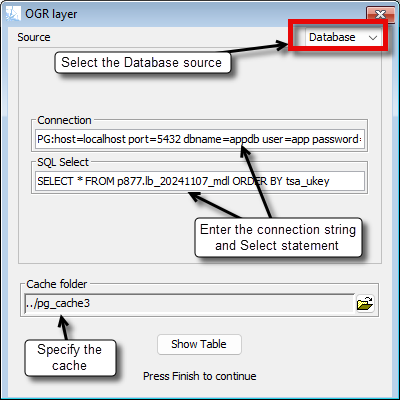
Reading the connection string
A PostgreSQL connection string consists of a series of name=value pairs
separated by spaces, starting with the driver prefix PG:. Here is a typical
example:
PG:host=db.spatial.ca port=5432 dbname=project_a user=tmoore
The important parameters are:
| Parameter | What it is for |
|---|---|
host | The server running PostgreSQL: a name like db.spatial.ca, or an IP address. |
port | The port number to connect on. It is usually 5432 unless your database administrator says otherwise. |
dbname | The database to open on that server. One server can host many databases. |
user | Your login name on the server. |
password | Your password. While it works here, refer to the next section for a better way to store it. |
schemas | Optional: restricts the layer list to the specified schema, keeping the dialog uncluttered on servers with many schemas. |
service | Optional: the name of a connection definition stored in a pg_service.conf file, allowing the string to be simplified to PG:service=forestry_gis. |
sslmode | Optional: specifies the level of encryption for the connection. "require" is a sensible minimum for anything beyond your own desk. |
connect_timeout | Optional: the number of seconds to wait before giving up on an unreachable server instead of hanging up forever. |
Where the password should live
A connection string with an embedded password works, but this presents a significant problem. The string can end up in project files, scripts, in spec strings, support emails, and screenshots. Anyone who obtains it has access to your login, and database passwords are rarely changed on a schedule. When a password does need to be rotated, every instance of the string across all projects must be hunted down and edited. Furthermore, scripts containing credentials often drift into version control, where they present a further risk of exposure.
The standard remedy is the pgpass.conf file: a plain text file in
your home directory that holds one login per line, formatted as follows:
hostname:port:database:username:password
For example:
db.spatial.ca:5432:gis:tmoore:secret
On Windows the file is located at
%APPDATA%\postgresql\pgpass.conf. By omitting the password from the
connection string, PostgreSQL can automatically find the matching line in the
file. There is nothing to type, nothing to leak into scripts, and when the
password eventually changes, there is only one location to update.
Organisations managing multiple databases to juggle can take it a step
further by using a pg_service.conf file, which stores the entire
connection (host, database, user, and pgpass.conf reference) under a single
name. The connection string in each project can then simply read
PG:service=forestry_gis, ensuring that the details are maintained
by the administrator rather than being scattered across numerous project
files.
One additional reassurance: Patchworks never writes the password into a
cache. The stored description of the snapshot contains the connection string
with the password replaced by ***.
Tables and queries
The layer can be specified in two ways.
The straightforward method is using a table name, such as
harvest_blocks. Patchworks will open the table and display its
attribute columns.
The more flexible method is to use a SQL query, starting with
SELECT:
SELECT * FROM landbase WHERE range = 'ESAR' ORDER BY block_key
A query can filter rows, join tables, and compute columns, essentially anything the server can do. Patchworks caches the result exactly as if it were a table.
One difference is worth knowing. A table opened by name hides its internal
key column (the FID); only the attribute columns are visible. In contrast, a
SELECT * result set includes that key column as an ordinary
column, so the query shows one column more than the table form. If you ever
notice a discrepancy of one column between the table and the query, this is
the reason.
There is nothing special to do about geometry, either. If the table or query result carries a geometry column, Patchworks opens it as a spatial layer, ready to draw on the map; if there is none, it opens as a plain attribute table. The open works the same way in both cases, and the snapshot treats them the same way too.
Putting the rows in order
A database returns rows in whatever order is convenient at the moment. This order is not guaranteed to remain consistent, and it can change as rows are updated. While this may be acceptable for scrolling through a table, it is unhelpful for a snapshot: the cache reads the layer from top to bottom in one pass, and whatever order is received becomes the order retained in the snapshot.
So when you use a query, specify how the rows should be ordered:
SELECT * FROM harvest_blocks ORDER BY block_key
Use the table's key column for the ORDER BY clause. This
ensures the snapshot is deterministic; the same query, rebuilt anywhere on any
day, produces rows in the same order. Two caches built from the same ordered
query will align row-for-row, which is exactly what you want when comparing or
joining them.
Updates when you want them
Most projects don't want periodic updates. Analysing a moving target is confusing: a scenario provides an answer to a specific question, and if the underlying data changes, previous scenarios wont be comparable. The usual practice is to take a snapshot at the start of the project and work from it for the life of the project, and that is exactly the cache workflow. The first open captures the table, and every subsequent open reuses that same snapshot, ensuring that nothing shifts beneath your analysis.
When you do need to sync with the master copy on the server, don't overwrite
the old snapshot; instead, create a new cache directory (for example,
Inventory-2026-11, while the previous one was
Inventory-2026-03). Patchworks will then build a fresh snapshot of
the current table under the new name, leaving the old one intact. Both
versions remain on disk, each result indicates its source, and the differences
between them are always clear and explainable.
What the cache remembers
When Patchworks builds a cache from a database layer, it records the connection string and the layer or query as its identity. If you reopen the same source and the identity matches, the cache is reused, resulting in a nearly instantaneous opening. A different query under the same cache name constitutes a different source: if there is a mismatch, a dialog will appear, offering to rebuild or reject the cache, never silently reusing the wrong snapshot.
The identity is compared exactly as written, with one small concession: the
leading PG: prefix is recognised in upper or lower case.
Everything else (the order of parameters, the spelling of the table, and the
case of the query) is compared literally. For instance,
select * from harvest_blocks and
SELECT * FROM harvest_blocks are treated as distinct identities by
the cache, even though they are the same query to the database. Thus, the
second attempt will prompt a rebuild rather than assuming they are the
same.
The resulting best practice is simple: connect once, verify that the layer opens, and thereafter copy the working connection string, layer and cache name instead of retyping them. This ensures that the cache matches, the snapshot is reused, you are working with a consistent set of data, and the database remains where it belongs: on the server and out of your Downloads folder.