ForestModel Editor
Creating a ForestModel XML file is an essential step in the process of constructing a Patchwork model. This file contains the recipe used by the MatrixBuilder to compile stand-level descriptions of growth and yield, succession, treatments and responses, and must be custom-built for each modeling situation. The Simple ForestModel Workbook provides one method for creating a ForestModel file. Now, a new tool is available for the interactive development and debugging of this core modeling component.
The ForestModel Editor reads, modifies, and saves ForestModel elements in their native XML format. When you start the editor, you can load an existing ForestModel XML file or begin creating a new model from scratch. Once loaded, the main editor window presents a set of tabs, each providing specialized editing controls for different elements of the ForestModel language.
The advantage of this new editor is that it provides rigorous syntax checking on the Patchworks Query Language statements used throughout the ForestModel elements as they are entered. All syntax errors can now be caught and corrected in a single pass, significantly reducing the number of cycles between editing the ForestModel and checking for errors in the MatrixBuilder.
Let's take a quick look at the editor using the C5 sample dataset.
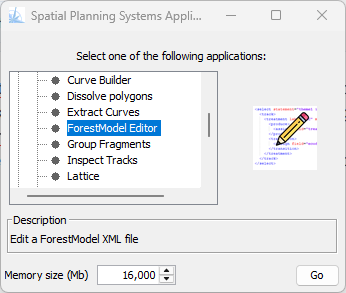
- Start by selecting and launching the ForestModel editor from the Patchworks Application Launcher.
-
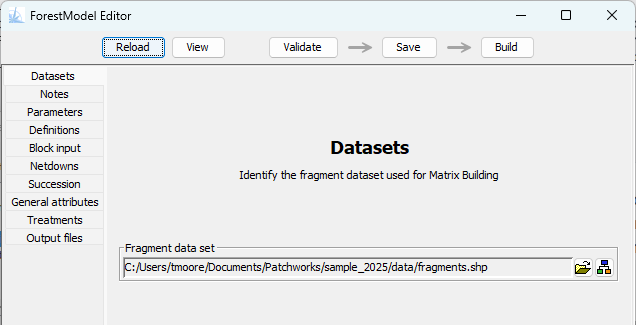
The editor will initially display the dataset pane. Use the file chooser button to select the fragments.shp file from the C5 sample data folder.
-
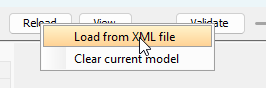
Next, click on the Reload button to load an existing model from an XML file. Use the file chooser to select the ForestModel_C5_lookup.xml file. After selecting the file, the editor will parse the contents and fill in the editing panes with the elements from the C5 model. Browse through the editing panes and double-click on elements to pop up the various custom element editors.
-
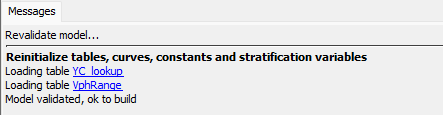
The Messages pane at the bottom of the editor will show the validation results from the initial loading of the model. If errors are detected, they will be listed in this pane, along with a hyperlink to the error source. Clicking on a hyperlink will open the corresponding element editor.
Any existing errors must be corrected before continuing. Errors are indicated in several ways:
- The Messages window will contain an error message and a hyperlink to the element.
- A red dot will appear beside the tab for any editing pane that contains an error.
- The element containing the error will appear with a red background.
- When you open the element editor, the field having the error will be outlined in red.
If you have made changes to the model, the Save button will have a yellow background. Save the model to a new or existing XML file. Once the file is saved, the Build button will become enabled.
The editing cycle typically involves the following steps:
- Loading a ForestModel file into the editor;
- Editing the elements on the various tabs;
- Validating the integrity of the entire model;
- Saving the changes to a new or existing XML file; and
- Building an input matrix using the currently loaded model.

The buttons at the top of the editor provide quick access to these actions. Models must be successfully validated before they can be built, and if you have made changes to the model, you must save them before building an input matrix. Clicking on the Build button will launch the MatrixBuilder application using the currently loaded model as the ForestModel recipe. While the MatrixBuilder is running, the editor will be disabled. The editor will be re-enabled once the MatrixBuilder has completed processing and the window is closed.
The editor will catch all syntax errors, but it cannot catch runtime errors such as missing curves or missing attributes. If these errors are detected by the MatrixBuilder, return to the editor and adjust the queries, or correct the input files.
Since this editor operates on XML files, it does not require a Simple ForestModel Workbook. In fact, older XML files generated by hand or by legacy tools should successfully open in the editor. Unfortunately, broken files containing improperly structured data cannot be opened by the editor: the editor only handles well formed ForestModel XML. Note that once you have modified and saved an XML file, it will be out of sync with the original source (e.g., Simple ForestModel Workbook), so you should continue using the ForestModel editor after that.
Due to the level of validation applied by the editor, ForestModel files that use <repeat> elements may require additional type hints (e.g., asString, asBoolean, etc.) to specify the expected data type. Otherwise, most existing models load without any problems.
Give this new tool a try and let us know about your experience. Are you encountering any problems with the editor? Is it a time-saver? Are there any improvements you would like to see? We would love to hear your feedback on this new feature.